
JSON Online View: Complete Guide to Viewing & Formatting
A JSON online view tool is a browser-based utility designed to transform compressed, minified, or unformatted JavaScript Object Notation (JSON) strings into structured, collapsible, color-coded tree views. By parsing raw text payloads locally in client memory, these utilities enable developers, data analysts, and API engineers to inspect complex nested arrays, validate syntax accuracy, and debug API responses instantly without software installations.
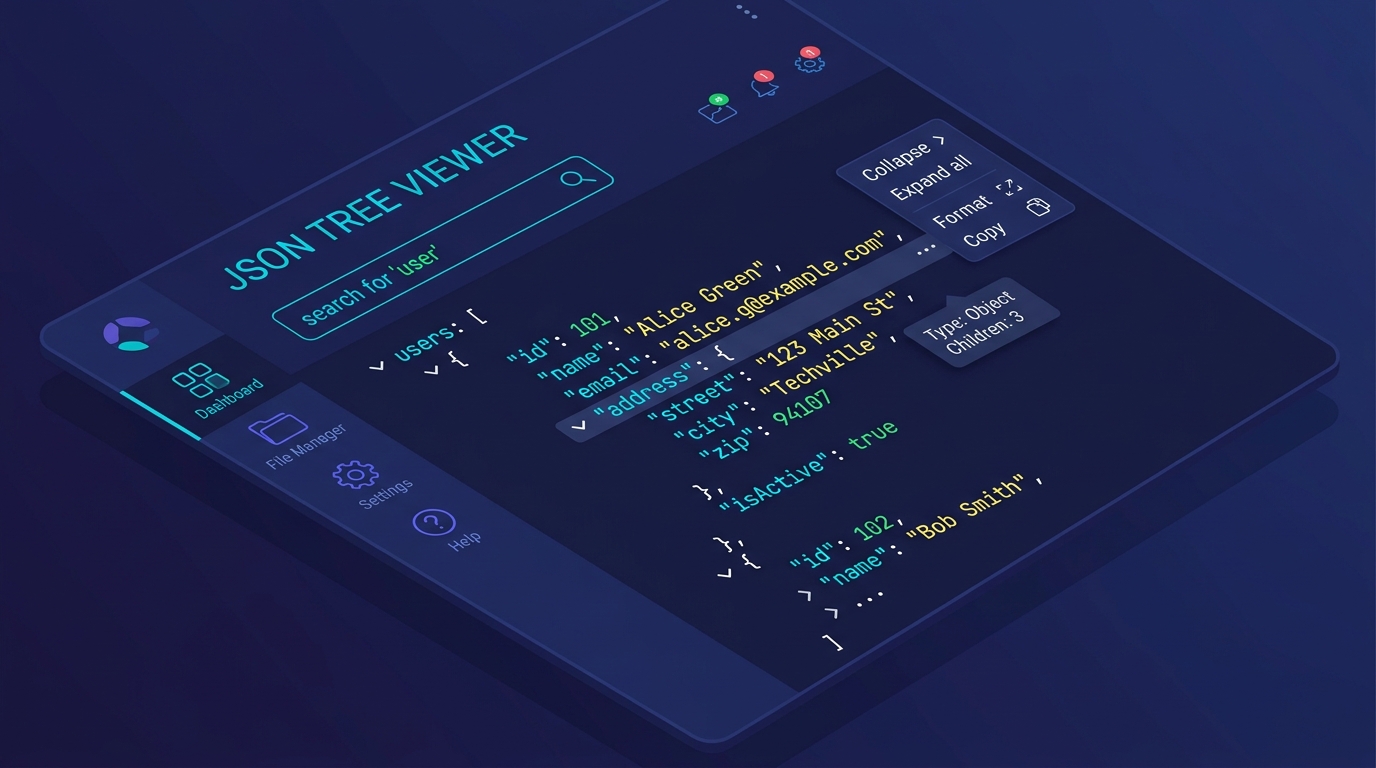 Figure 1: Viewing minified JSON data payloads in structured interactive tree views with color-coded data types.
To open and view a JSON file online instantly, use a client-side browser tool like DataFrog JSON Viewer. Paste your raw JSON string or drag-and-drop your .json file into the editor. The browser engine parses the payload in local memory, generating a color-coded, expandable tree view with real-time syntax checking and node filtering — 100% private with zero server uploads.
Table of Contents
- What Is a JSON Online View Utility?
- Why Use an Online JSON Viewer Instead of Text Editors?
- Key Features of Modern JSON Tree Viewers
- Step-by-Step: How to View JSON Files Online
- Security & Data Privacy: Client-Side vs. Server-Side Viewers
- Advanced JSON Analysis: Filtering, Profiling, & Schema Assertion
- Comparing Popular JSON Inspection Methods
- Frequently Asked Questions (FAQ)
What Is a JSON Online View Utility?
A JSON online view utility is a specialized web application that converts raw JSON payloads into human-readable data representations. In production environments, web APIs, microservices, and databases compress JSON data by stripping whitespace, line breaks, and indentation to reduce network transfer overhead.
{"status":"success","code":200,"data":{"user":{"id":1042,"name":"Alice Green","roles":["admin","editor"],"settings":{"theme":"dark","notifications":true}}}}While minified strings optimize network bandwidth, inspecting them visually in plain text editors is difficult. A JSON file viewer online parses these compressed strings, formats key-value pairs across structured lines, and renders interactive tree nodes that can be expanded or collapsed on demand.
Why Use an Online JSON Viewer Instead of Text Editors?
Generic text editors (such as Notepad or Basic TextEdit) display JSON as flat text without syntax highlighting, structural validation, or node collapsing. Online JSON data viewers provide distinct operational advantages:
- Instant Tree Navigation: Expand or collapse multi-level nested objects
{}and arrays[]to focus on relevant sub-trees. - Color-Coded Data Types: Strings, numbers, booleans (
true/false), andnullvalues are color-highlighted for fast visual identification. - Real-Time Syntax Error Detection: Line numbers and exact character offset indicators flag missing quotes, unclosed brackets, or trailing commas immediately.
- Node Search & Key Filtering: Search deeply nested objects by key name or property value without manual scrolling.
- Zero Software Installation: Access full inspection capabilities across any operating system or mobile browser.
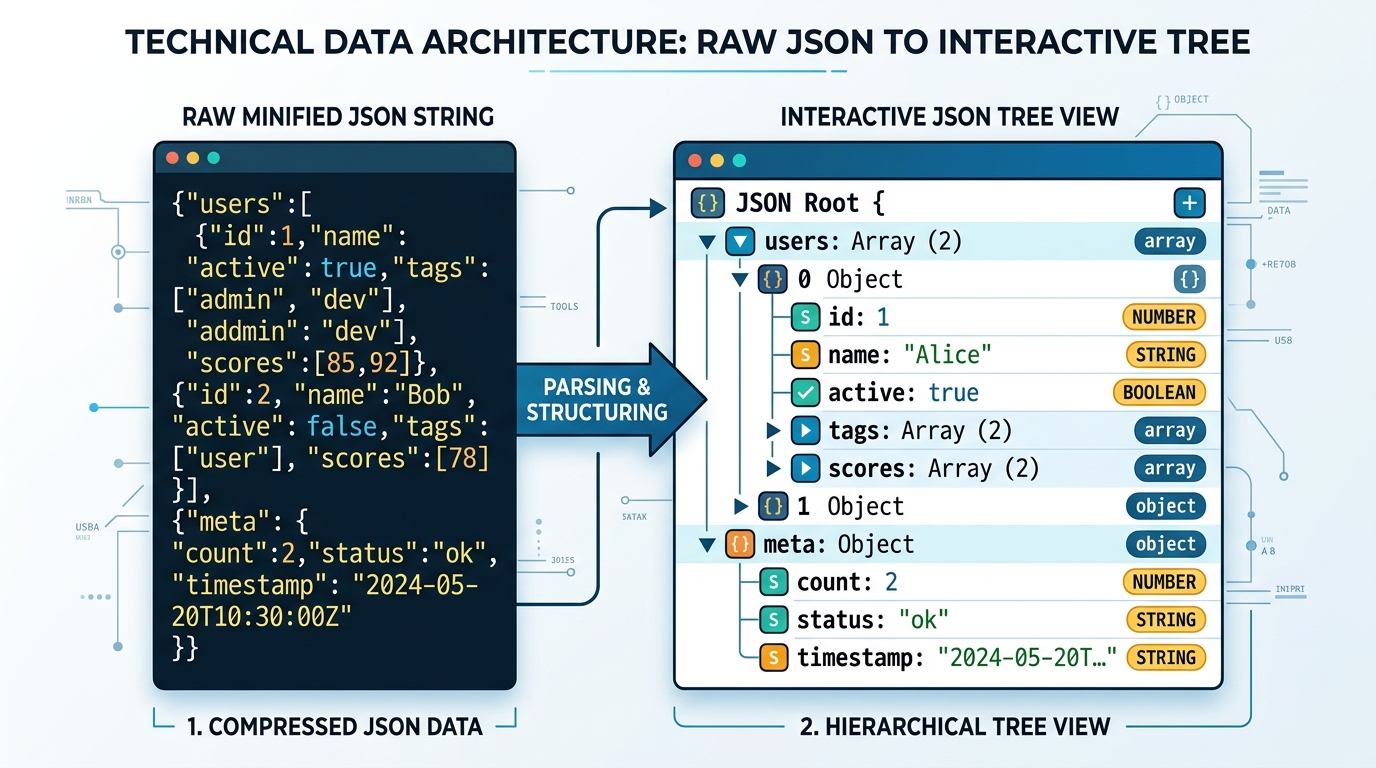 Figure 2: Architectural transformation of compressed JSON text strings into interactive hierarchical tree structures.
Key Features of Modern JSON Tree Viewers
When choosing an online json viewer, evaluate key capabilities required for developer workflows:
1. Collapsible Tree Nodes
Nested arrays and objects display small toggle controls (▼ / ▶). Clicking a toggle collapses deep child branches, allowing engineers to view top-level schema keys without visual clutter.
2. Dual View Modes (Tree View vs. Formatted Code)
Switch seamlessly between a structured GUI tree viewer and a formatted code editor with 2-space or 4-space indentation.
3. Syntax Highlighting & Type Badging
Primitive types are styled distinctly to prevent type ambiguity errors: - Strings: Green / Amber text enclosed in quotation marks. - Numbers: Cyan / Blue numeric values. - Booleans: Purple / Violet bold tags. - Null Values: Muted gray indicators.
Step-by-Step: How to View JSON Files Online
Opening and formatting a JSON document online requires four simple steps:
// Step 1: Input your raw JSON string or load a .json file
[
  {
    "projectId": "PRJ-901",
    "name": "Database Migration",
    "active": true,
    "team": ["Sohail", "Sarah", "Gourav"],
    "budget": 45000.00
  }
]
Step 1: Open the Online Viewer Workspace
Navigate to DataFrog JSON Viewer in any modern web browser.
Step 2: Input Your JSON Data
Copy your raw JSON string from your API client, terminal, or log file, and paste it into the editor pane. Alternatively, click Upload File or drag-and-drop your local .json file into the dropzone.
Step 3: Format & Expand Tree Nodes
The editor parses the payload instantly. Click Format / Pretty Print to format raw text, or click Tree View to inspect expandable object branches.
Step 4: Search & Extract Values
Type target property names into the search bar to locate specific fields or click Copy to copy formatted data to your clipboard.
Security & Data Privacy: Client-Side vs. Server-Side Viewers
⚠️ Security Alert: Beware of Cloud Upload JSON Viewers
Many legacy online JSON utilities send your pasted JSON strings to remote cloud servers for formatting. If your JSON contains API tokens, customer credentials, private database dumps, or financial records, uploading it to external servers poses significant security and compliance risks. Always verify that your chosen viewer operates 100% client-side in browser memory.
| Viewer Category | Data Processing Location | Network Request Sent? | Security Risk Level | Suitable for Production Data |
|---|---|---|---|---|
| Client-Side (DataFrog) | Browser Memory (JavaScript RAM) | ❌ No Network Transmission | 🟢 Zero Risk | ✅ Yes (100% Private) |
| Server-Side API Viewers | Remote Cloud Application Servers | ⚠️ Yes (HTTP POST Payload) | 🔴 High Security Risk | ❌ No (Leaks Sensitive Data) |
DataFrog utilities process 100% of JSON parsing locally inside your browser window using WebAssembly and local JavaScript engines. No payloads are ever transmitted to cloud servers.
Advanced JSON Analysis: Filtering, Profiling, & Schema Assertion
For complex data engineering tasks, viewing raw trees is only the first step. Combine JSON viewing with specialized inspection tools:
- Data Profiling: Use DataFrog JSON Analyzer to detect missing properties, inspect statistical distributions, and analyze field types across thousands of array items.
- Schema Validation: Use DataFrog JSON Schema Validator to assert payloads against Draft-07 or Draft 2020-12 schemas to ensure API contract compliance.
- Visual Mapping: Use DataFrog JSON Visualizer to generate visual graphs and structural maps of complex relational objects.
Comparing Popular JSON Inspection Methods
Select the optimal JSON inspection approach based on your environment and security requirements:
| Inspection Method | Ideal Use Case | Installation Needed | Offline Capability | Tree Navigation |
|---|---|---|---|---|
| DataFrog Browser Viewer | Quick, private, web-based JSON viewing | No (Zero Install) | Yes (PWA / Cached) | Excellent (Collapsible) |
| VS Code / IDE Extensions | Code editing & git version control | Yes (IDE Required) | Yes | Good (Plugin Dependent) |
| Browser DevTools (Network Tab) | Debugging active HTTP API calls | No (Built into browser) | Yes | Basic (Read-Only) |
Command Line (jq CLI) |
Terminal scripts & automated pipelines | Yes (CLI Package) | Yes | None (Text Stream) |
Frequently Asked Questions (FAQ)
What is a JSON online view tool?
A JSON online view tool is a web application that parses raw or minified JSON strings into interactive, color-coded, collapsible tree hierarchies directly inside your browser.
Is it safe to view sensitive JSON files online?
Yes, provided you use client-side local browser tools. Privacy-first tools like DataFrog process JSON parsing 100% inside browser memory without sending payloads across networks.
How do I format minified JSON strings online?
Paste your minified JSON string into a web viewer and click Format or Pretty Print. The viewer parses key-value pairs and adds indentation and line breaks for readability.
Can I open large JSON files online without crashing my browser?
Modern browser-based JSON viewers handle multi-megabyte files efficiently using virtualized DOM rendering that only loads visible tree nodes into active memory.
What is the difference between JSON viewing and JSON validation?
JSON viewing focuses on structural visualization, formatting, and tree navigation, whereas JSON validation checks data syntax and schema constraint rules against formal specifications.
How do I search for specific keys inside deeply nested JSON trees?
Use the built-in search filter bar of a JSON tree viewer. Typing a key name or value automatically filters the object hierarchy and highlights matching target nodes.
Inspect and Format JSON Data Privately
Start inspecting and formatting your JSON payloads instantly with DataFrog’s privacy-first browser utilities:
- DataFrog JSON Viewer: View, format, search, and navigate complex JSON trees 100% locally.
- DataFrog JSON Analyzer: Profile JSON datasets, detect missing keys, and analyze property types.
- DataFrog JSON Schema Validator: Assert payload syntax and validate JSON Schema constraints in real time.