
How to Import JSON into Excel: Step-by-Step Tutorial & Best Methods
To import JSON into Excel, open Microsoft Excel 365 or Excel 2016+, navigate to Data > Get Data > From File > From JSON, select your file, and click Import. Inside the Power Query Editor window, click To Table, expand the nested record attributes using the double-arrow column header icon, and click Close & Load to output clean tabular rows.
 Figure 1: Transforming structured JSON documents into clean Microsoft Excel tables using native queries and browser converters.
If you use Microsoft 365, Excel 2021, 2019, or 2016, use native Power Query: Click Data > Get Data > From File > From JSON. Select your .json file, click To Table in Power Query Editor, click the expand icon (⤢) in the column header, and click Close & Load. For older Excel versions or instant web processing without desktop software, convert your JSON data using a privacy-first browser utility like DataFrog JSON Viewer or DataFrog JSON Analyzer to generate downloadable Excel workbooks.
Table of Contents
- Understanding JSON Data in Excel
- Method 1: Import JSON to Excel via Power Query (Excel 365, 2021, 2019, 2016)
- Method 2: Opening JSON Files in Legacy Excel (Excel 2013, 2010, and VBA Macros)
- Method 3: Converting JSON to CSV Before Importing to Excel
- Method 4: Browser-Based No-Install Method (Privacy-First Data Tools)
- Method Comparison: Power Query vs. Legacy vs. Browser Conversion
- Common JSON-to-Excel Import Errors & Fixes
- Frequently Asked Questions (FAQ)
Understanding JSON Data in Excel
JSON (JavaScript Object Notation) formats data using key-value pairs, nested objects {} and ordered arrays [], whereas Excel requires rectangular grid structures organized into fixed rows and columns. Importing JSON data into Excel requires parsing hierarchical object trees into flattened tabular records.
[
  {
    "id": 101,
    "customer": "Alice Brown",
    "email": "alice@example.com",
    "orders": [
      { "item": "Keyboard", "price": 49.99 },
      { "item": "Mouse", "price": 19.99 }
    ]
  },
  {
    "id": 102,
    "customer": "Bob Smith",
    "email": "bob@example.com",
    "orders": [
      { "item": "Monitor", "price": 199.99 }
    ]
  }
]
When you open a JSON file directly in text editors, the document appears as text strings. When learning how to import JSON into Excel, the goal is converting keys like "customer" and "email" into column headers while mapping array values to individual worksheet rows.
Method 1: Import JSON to Excel via Power Query (Excel 365, 2021, 2019, 2016)
Power Query provides native JSON parsing engine capabilities built directly into modern Microsoft Excel installations.
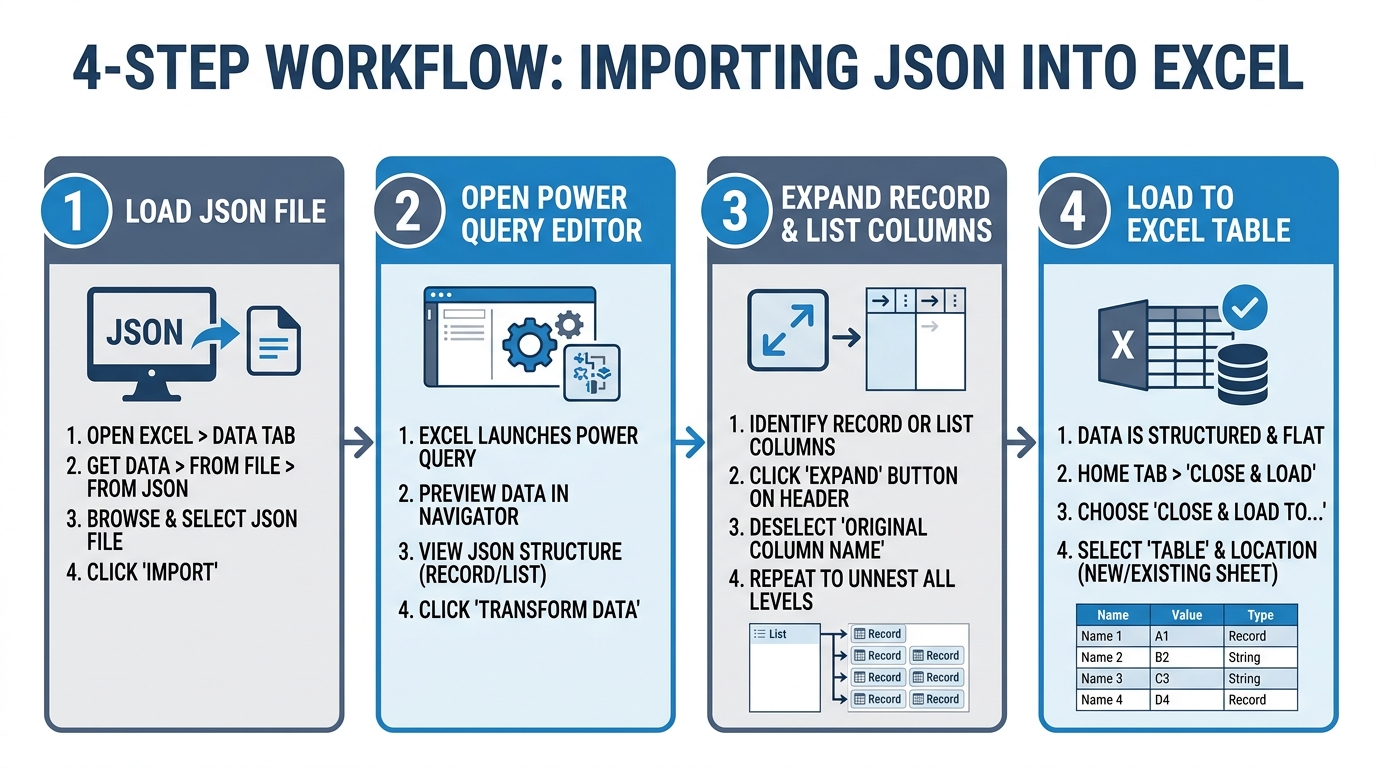 Figure 2: The native 4-step Power Query workflow for importing JSON files into Microsoft Excel worksheets.
Step 1: Open the Native JSON Import Wizard
Open Microsoft Excel, create a new blank workbook, and navigate to the top ribbon menu:
1. Click the Data tab.
2. Select Get Data on the far-left section of the ribbon.
3. Hover over From File and click From JSON.
4. Browse your local file system, select your target .json file, and click Import.
Step 2: Convert JSON Record Lists to Table Structure
Once Excel loads the file, the Power Query Editor window launches automatically, displaying your root JSON node as a list of records or a single root object record. 1. Look at the top left toolbar under the Transform ribbon tab. 2. Click the To Table button. 3. In the pop-up dialog box, leave Select or enter delimiter set to None and How to handle extra columns set to Show as errors, then click OK.
Step 3: Expand Record Attributes into Table Columns
After converting to a table, your dataset displays a single column titled Column1 populated with Record or List items.
1. Click the Expand icon (the small icon with two diverging horizontal arrows: ⤢) located on the right side of the Column1 header.
2. Uncheck Use original column name as prefix to keep clean, concise column header titles.
3. Verify that all desired JSON object keys are checked in the field list.
4. Click OK.
Step 4: Flatten Nested Arrays and Lists
If your JSON file contains nested arrays (such as order items or tags), those specific columns will display List in every cell:
1. Click the expand icon (⤢) on the header of the column containing List items.
2. Choose Expand to New Rows. This duplicates parent record fields across multiple rows to accommodate array items.
3. Click the expand icon a second time on the expanded column to select specific nested object fields (such as item or price).
Step 5: Close and Load Data to Excel Worksheet
Once your data preview displays expected rows and columns:
1. Click Close & Load on the top-left section of the Home tab in Power Query Editor.
2. Excel inserts a formatted Excel Table (ListObject) into your active worksheet containing all parsed JSON data.
Method 2: Opening JSON Files in Legacy Excel (Excel 2013, 2010, and VBA Macros)
Legacy versions of Microsoft Excel (Excel 2010, 2013) do not include native JSON import menus in the Data tab. To open JSON in legacy Excel, install the official Microsoft Power Query add-in for Excel 2010/2013 or execute custom VBA macro code.
Option A: Install Microsoft Power Query Add-in (Excel 2010 & 2013)
Microsoft provides a standalone Power Query add-in download for legacy Excel versions: 1. Download the Microsoft Power Query Add-in for Excel from Microsoft’s official download center. 2. Install the executable matching your installed Office bitness (64-bit or 32-bit). 3. Relaunch Excel. A new Power Query tab will appear in your ribbon menu. 4. Click Power Query > From File > From JSON and follow the step-by-step Power Query workflow outlined in Method 1.
Option B: Use VBA Macro Scripts for Automated JSON Import
If third-party add-ins are restricted by IT policy, use a VBA macro utilizing the open-source VBA-JSON parser library (JsonConverter.bas).
' VBA Macro Snippet for Parsing JSON Strings into Excel Rows
Sub ImportJSONData()
    Dim FSO As Object
    Dim JsonFile As Object
    Dim JsonText As String
    Dim ParsedJson As Object
    Dim Item As Object
    Dim RowNum As Long

    ' Read JSON File Text
    Set FSO = CreateObject("Scripting.FileSystemObject")
    Set JsonFile = FSO.OpenTextFile("C:\data\sample.json", 1)
    JsonText = JsonFile.ReadAll
    JsonFile.Close

    ' Parse JSON using JsonConverter
    Set ParsedJson = JsonConverter.ParseJson(JsonText)

    ' Output Records to Active Worksheet
    RowNum = 2
    Cells(1, 1).Value = "ID"
    Cells(1, 2).Value = "Customer Name"
    Cells(1, 3).Value = "Email"

    For Each Item In ParsedJson
        Cells(RowNum, 1).Value = Item("id")
        Cells(RowNum, 2).Value = Item("customer")
        Cells(RowNum, 3).Value = Item("email")
        RowNum = RowNum + 1
    Next Item

    MsgBox "JSON Import Complete!", vbInformation
End Sub
Method 3: Converting JSON to CSV Before Importing to Excel
Converting JSON data into CSV (Comma-Separated Values) format first is a universal technique that works seamlessly across all spreadsheet applications, including Excel 2007, Google Sheets, Apple Numbers, and LibreOffice Calc.
Using Command-Line jq Utility
The open-source command-line tool jq parses JSON payloads and formats fields directly into CSV text:
# Extract JSON array attributes to CSV using jq
jq -r '.[] | [.id, .customer, .email] | @csv' input.json > output.csv
Once output.csv is generated, open Excel and navigate to Data > From Text/CSV, select UTF-8 encoding, and click Load.
Method 4: Browser-Based No-Install Method (Privacy-First Data Tools)
When working on restricted enterprise workstations where add-in installations or command-line tools are restricted, browser-based local parsing provides an immediate no-install solution.
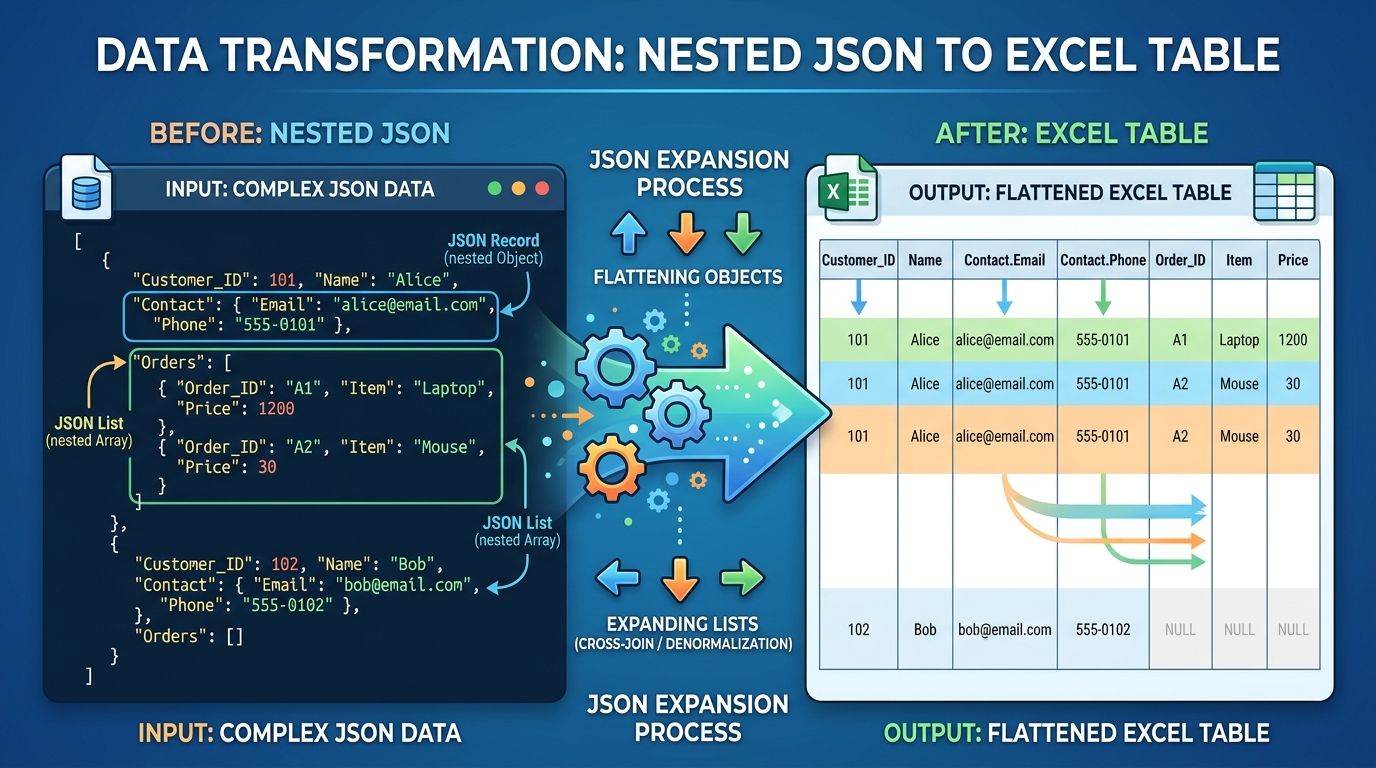 Figure 3: Expanding multi-level nested JSON object arrays into structured tabular format before exporting.
Step 1: Inspect and Format JSON Online
Open DataFrog JSON Viewer or DataFrog JSON Analyzer in your browser. Copy and paste your JSON string or drag-and-drop your .json file into the editor.
Step 2: Validate Schema and Structure
Use DataFrog JSON Schema Validator to ensure your JSON payload contains valid syntax and adheres to required structural types.
Step 3: Convert and Download Clean Excel File
Click the Export to Excel (.xlsx) or Export CSV button inside the browser workspace. The tool parses the JSON hierarchy entirely in client browser RAM and generates a clean workbook file for download without sending data to external servers.
Method Comparison: Power Query vs. Legacy vs. Browser Conversion
Selecting the right method depends on your installed Excel version, computer security permissions, and whether your JSON payload contains complex nested arrays.
| Method | Supported Excel Versions | Requires Software Install | Handles Nested Arrays | Setup Effort | Refreshable Connection |
|---|---|---|---|---|---|
| Power Query (Native) | Excel 365, 2021, 2019, 2016 | No (Built-in) | Yes (Expand Lists) | Low (GUI Ribbon) | Yes (1-Click Refresh) |
| Power Query Add-in | Excel 2013, 2010 | Yes (Free Add-in) | Yes (Expand Lists) | Medium | Yes (1-Click Refresh) |
| VBA Macro Code | All Excel Versions (Windows/Mac) | No (Built-in Editor) | Requires Custom Code | High (Writing Scripts) | Manual Re-run |
CSV Conversion (jq) |
All Excel & Spreadsheet Software | Yes (CLI Tool) | Requires Scripting | Medium | No |
| Browser Converter | Any Browser / Any Device | No (Zero Installation) | Yes (Auto-Flattening) | Instant (< 5 sec) | Manual Export |
Common JSON-to-Excel Import Errors & Fixes
Error 1: Column Displays Record or List Instead of Cell Values
Root Cause: The JSON document contains nested child objects {} or arrays [].
Fix: In Power Query Editor, click the expand button (⤢) located in the header of the column showing Record or List. Select Expand to New Rows for lists or check individual field names for records.
Error 2: Dates Import as Text Strings or Raw UNIX Timestamps
Root Cause: JSON has no native date type; dates are stored as ISO-8601 strings ("2026-08-10T09:30:00Z") or epoch integers (1786343235).
Fix: In Power Query Editor, right-click the date column header, select Change Type > Date/Time (for ISO strings) or add a custom column formula for epoch timestamps:
#datetime(1970, 1, 1, 0, 0, 0) + #duration(0, 0, 0, [epoch_timestamp])Error 3: Special Characters and Diacritics Display as Corrupted Symbols (é, )
Root Cause: The JSON file was encoded in UTF-8 without a BOM (Byte Order Mark) while Excel defaults to local ANSI/Windows-1252 codepages. Fix: When importing via Data > From Text/CSV, select File Origin: 65001 : Unicode (UTF-8) in the drop-down menu before clicking Load.
Error 4: Large JSON File Causes Memory Crashes or Freezes Excel
Root Cause: Excel worksheets are limited to 1,048,576 rows per sheet. Complex JSON arrays exceeding this limit overflow worksheet dimensions. Fix: In Power Query Editor, click Load To… > Only Create Connection, then check Add this data to the Data Model. This loads millions of JSON records directly into Excel’s high-compression PowerPivot memory without exceeding row limits.
Frequently Asked Questions (FAQ)
How do I open a JSON file directly in Excel?
To open a JSON file in Excel 365, Excel 2021, or Excel 2019, navigate to Data > Get Data > From File > From JSON. Select your file, click Import, and use the Power Query Editor to transform and load the JSON records directly into a worksheet table.
Why does my JSON data appear as ‘Record’ or ‘List’ in Power Query?
JSON objects and arrays represent hierarchical data structures. Power Query displays nested objects as ‘Record’ and arrays as ‘List’ until you click the double-arrow expand icon in the column header to expand fields into table columns.
Can I automatically refresh imported JSON data in Excel?
Yes. Power Query connections created via Data > Get Data retain a background query pointer. Right-click your table and select Refresh, or configure automatic background refresh intervals under Query Properties.
Is it safe to convert sensitive JSON data into Excel online?
Client-side privacy tools process JSON parsing directly in your web browser memory without transmitting payloads across networks. Avoid uploading sensitive financial or personal JSON files to cloud servers that store data remotely.
What is the fastest way to import nested JSON arrays into Excel columns?
The fastest method for nested JSON arrays is using Power Query’s ‘To Table’ transformation, followed by clicking ‘Expand to New Rows’ on List columns and selecting column fields to extract.
Does Excel support JSON natively in older versions like Excel 2010 or 2013?
Excel 2010 and 2013 lack built-in native JSON menu imports. To open JSON in older Excel versions, install the free Microsoft Power Query add-in, convert the JSON file to CSV format first, or use a custom VBA macro script.
Clean and Audit Your Excel Workbooks Privately
Once you have imported your JSON data into Excel, inspect your spreadsheet for duplicate entries or formatted errors using DataFrog’s privacy-first browser utilities:
- DataFrog JSON Viewer: Inspect, format, search, and validate raw JSON documents in interactive visual trees.
- DataFrog JSON Analyzer: Profile JSON datasets, detect missing keys, analyze data types, and export clean files.
- DataFrog Excel Duplicate Remover: Scan uploaded Excel workbooks (
.xlsx,.xls), group duplicate records by key columns, preview duplicate groups, and download deduplicated workbooks 100% locally in your browser.